Menu Lag
The most common lag or performance issue people encounter is the infamous “menu lag” on low VRAM gpus. It is when you launch your game with normal fps, play normally, but then when you pause the game, your FPS dips to like 10 and STAYS that way. Some people can just press Esc like 2-4 times (or just Quicksave) and it fixes it for them, but it is not a permanent fix and is something you’ll have to do often if you’re the type to always pause your game. Besides upgrading your GPU to a higher VRAM one, here are a few fixes that people have confirmed alleviates/fixes the issue for them.
- Increase your page file to at least 80000 (80 GB) if you haven’t already. This is very important and the main fix to countless problems such as menu lag and crashing.
- Make sure none of these apps are running on your PC.
- Disable auto-save. Many people say this helps. Just be aware that you obviously won’t have auto-save anymore. You’re gonna have to quicksave or make manual saves. It is under Gameplay Options at the very bottom.
- If you have any overlay apps running, such as Discord Game Overlay, NVIDIA Performance Overlay, etc; please disable them. They are known to make the issue much worse.
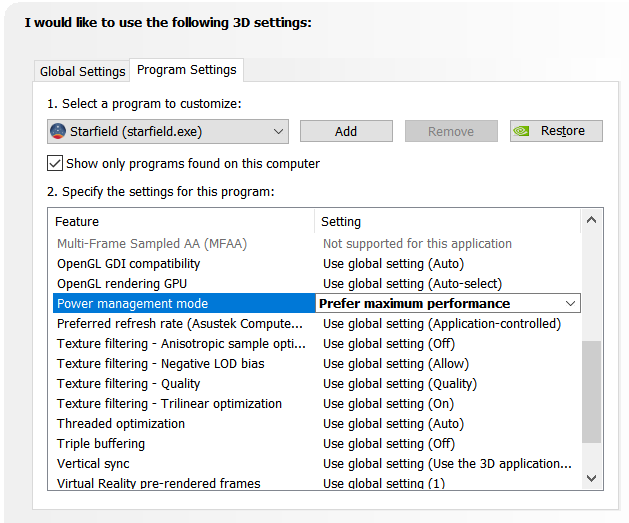
- Change the Power Management Mode for your GPU to Prefer Maximum Performance
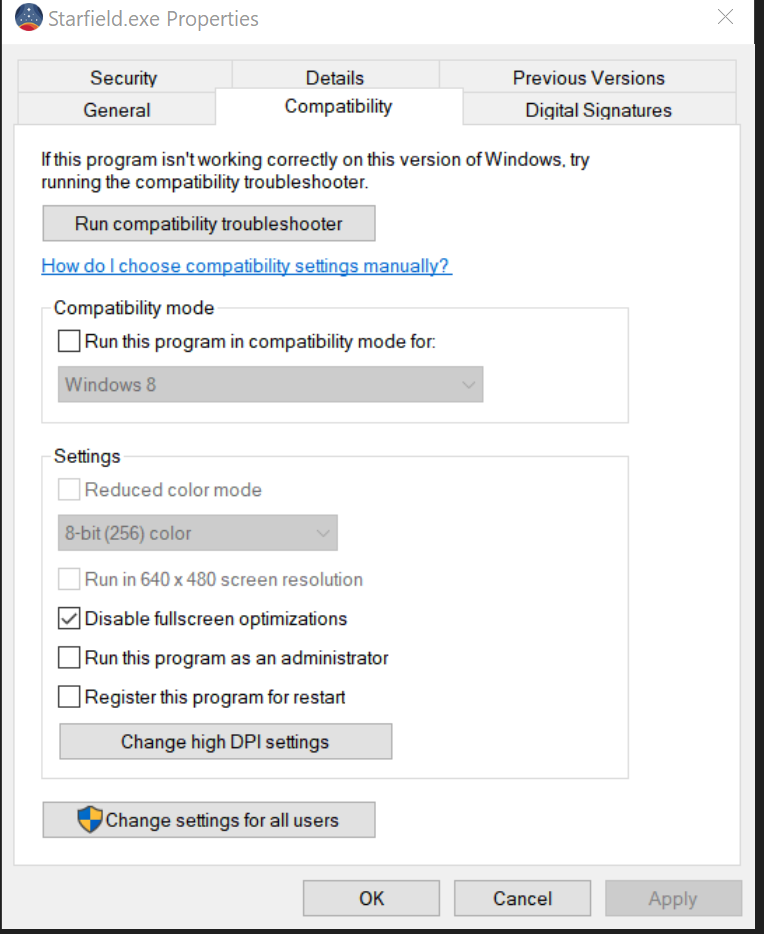
- Disable Full Screen Optimizations in Starfield.exe
- Out of precaution, please recompile your shaders by running GENESIS_DOCUMENTS.bat again. Please do not have anything open such as a browser or other game. It is important these shaders compile properly without any issues.
- Beyond these possible fixes, I recommend just using the Tab menu to “pause” your game instead of the actual Esc pause, as that doesn’t cause menu lag. Ultimately, this is just an engine/optimization issue with Starfield itself and many non-genesis users are starting to experience it too as their personal modlists get as big as Genesis. I’m sure the problem will be solved one day by either Bethesda or a very talented modder.
FPS Boosts
Everything below this is minor stuff that just increases your overall FPS. For some people it barely makes a difference, while for others it drastically improves their experience.
- Edit your Starfield.ini in your Starfield folder and add a # infront of uiUpscale Tech. It would basically look like this:
#uiUpscaleTech - If you have a 30 series+ GPU, download Nvidia Profile Inspector and enable ReBar for Starfield
- In NVIDIA Control Panel for Starfield.exe, set these settings to match what’s below:
- Power Management Mode -> Prefer Maximum Performance
- Shader Cache Size -> Unlimited
- Low Latency Mode -> Off
- Textere Filtering – Quality -> High Performance
- Anisotropic Sample Optimization -> On
- Threaded Optimization -> On
Under 8 GB VRAM GPUs (Potato PC Guide)
If you are crashing in Coruscant and have confirmed it’s not an install issue, please follow the instructions here.
 Star Wars Genesis