Downgrading Starfield
This is a guide on how to downgrade Starfield for Star Wars Genesis V6. It is not necessary for V7.
I REPEAT. IF YOU SEE THIS TEXT, THEN YOU DO NOT NEED TO DOWNGRADE YOUR STARFIELD ANYMORE.
PREPARING YOUR GAME
- Install Starfield from Steam (DO NOT UNINSTALL)
- Delete ALL files within
steamapps\common\Starfield - If you do this step correctly, then you should have an empty folder called Starfield now. I cannot stress how important this step is.
DOWNLOADING DEPOT FILES
- Press WIN+R and type in:
steam://open/console - Proceed to download the 1.13.61 version of Starfield with the following commands:
download_depot 1716740 1716741 7505067040770585928download_depot 1716740 1716742 8815570247023315305
Note: This is the longest part of the downgrade process as it reinstalls the entire game. Make sure you don’t close the steam console prematurely. It MUST say that it finished/completed the download. Countless people have made this mistake
- This next depot is only required if you own the Digital Premium Edition Upgrade version of Starfield
- download_depot 1716740 2401180 1350450549444461803
- This next depot is only required if you own the Starfield Preorder Bonus
download_depot 1716740 2401181 9009164480135609609
- After the downloading is finished, head to
Steam\steamapps\content\app_1716740 - Copy everything from INSIDE the numbered folders into
steamapps\common\Starfieldfollowing this order (override any files):17167411716742- 2401180 (if you have)
2401181(if you have)
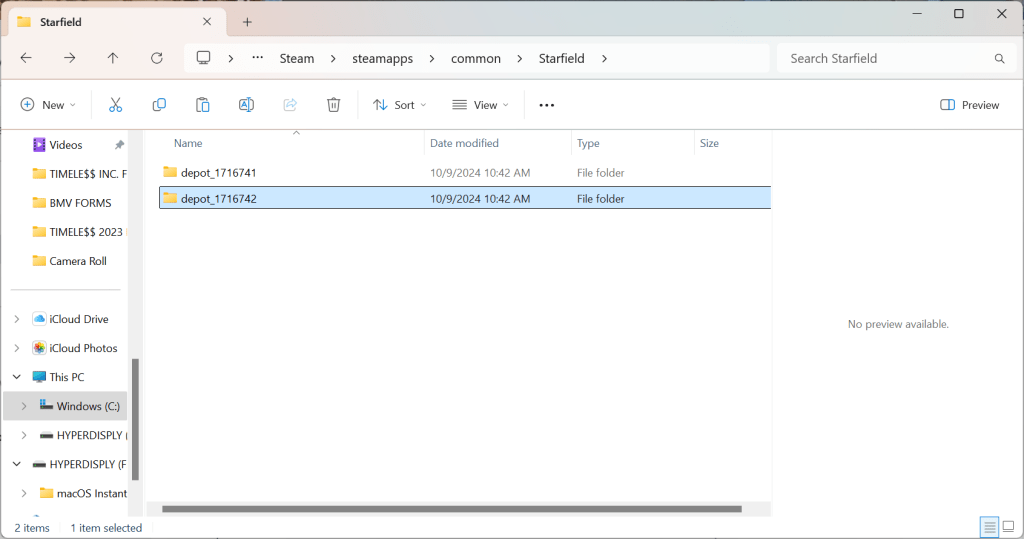
Note: If you do this correctly, there should now be a Starfield.exe file in steamapps\common\Starfield
IT SHOULD NOT LOOK LIKE THIS
PREVENTING FURTHER UPDATES
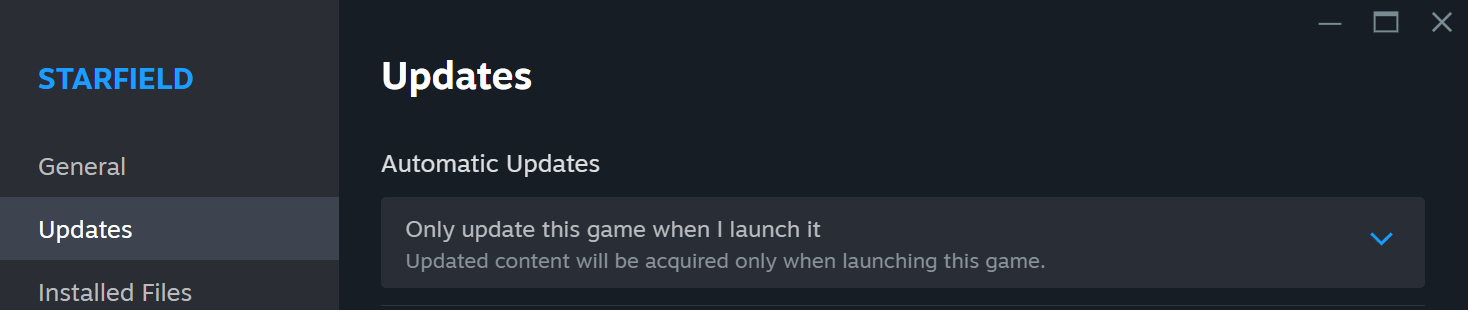
- TURN OFF Automatic Updates for Starfield. This Steam setting will make it so launching the game through Mod Organizer 2 will not cause it to get updated.
- Keep your
app_1716740folder just incase you accidently update so you can easily redo this process. - You are now ready to install Star Wars Genesis
COMMON ISSUES
If your Mod Organizer 2 Plugin List looks like this, then your downgrade didn’t finish properly due to a lack of game files or you copied over the depot files incorrectly. Again, make sure each depot download you do says it finished. Don’t close your Steam Console during this process.
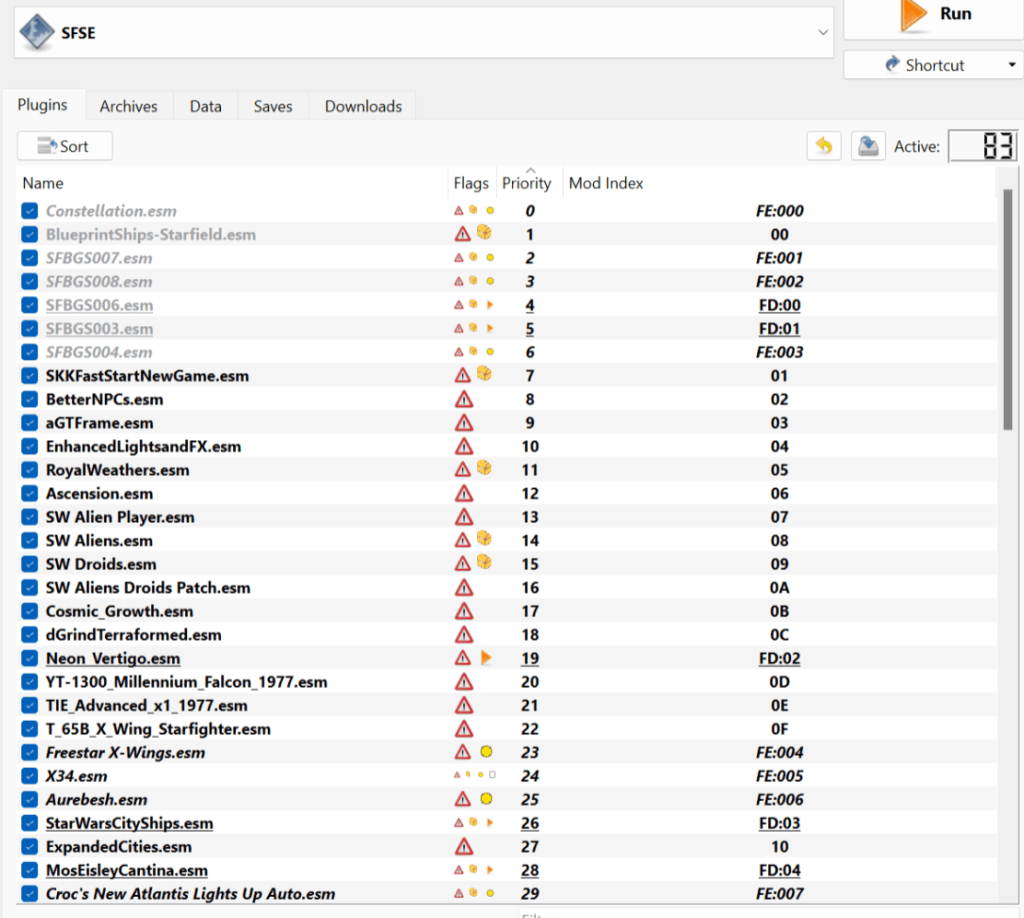
If you see this, then you definitely didn’t paste the depot files correctly.

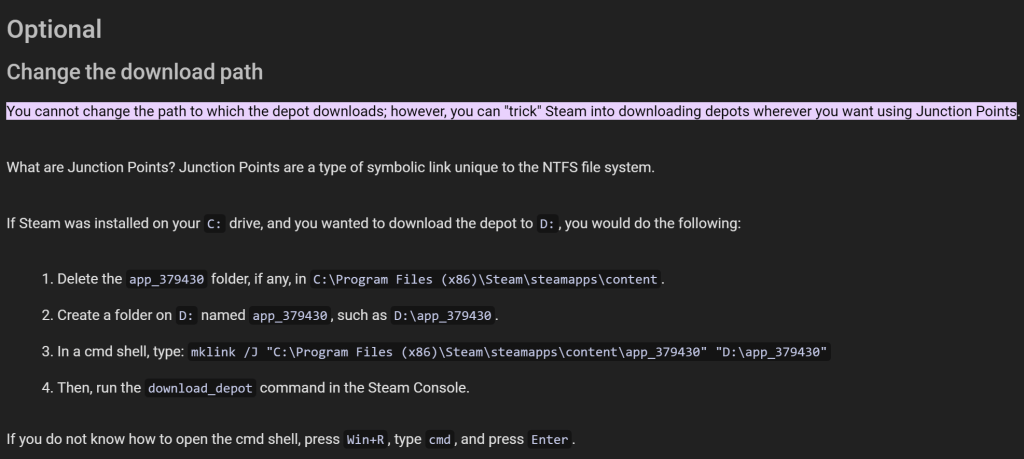
If you see an “error writing chunk for….” in the Steam Depot console, then the default drive it’s trying to install it in is out of space. If you can’t make any space, the last resort is to change the default location in a more complicated way. Just make sure the appid folder it’s referencing here is using the Starfield numbers from the above steps. This also has to be done on CMD now instead of Steam Console.
 Star Wars Genesis